Getting Started
Software requirements
Before you begin the installation of the tools required for this course, make sure you have the following pre-requisites installed on your system:
- Rhino 8: https://www.rhino3d.com/download
- VS Code (free): https://code.visualstudio.com/
- GIT (free): https://git-scm.com/
NOTE: On Mac, GIT is usually pre-installed, you do not need to install again. To check if it is installed, open a terminal window and type
git, if the result does not indicate any error, it means you already have it in your system.
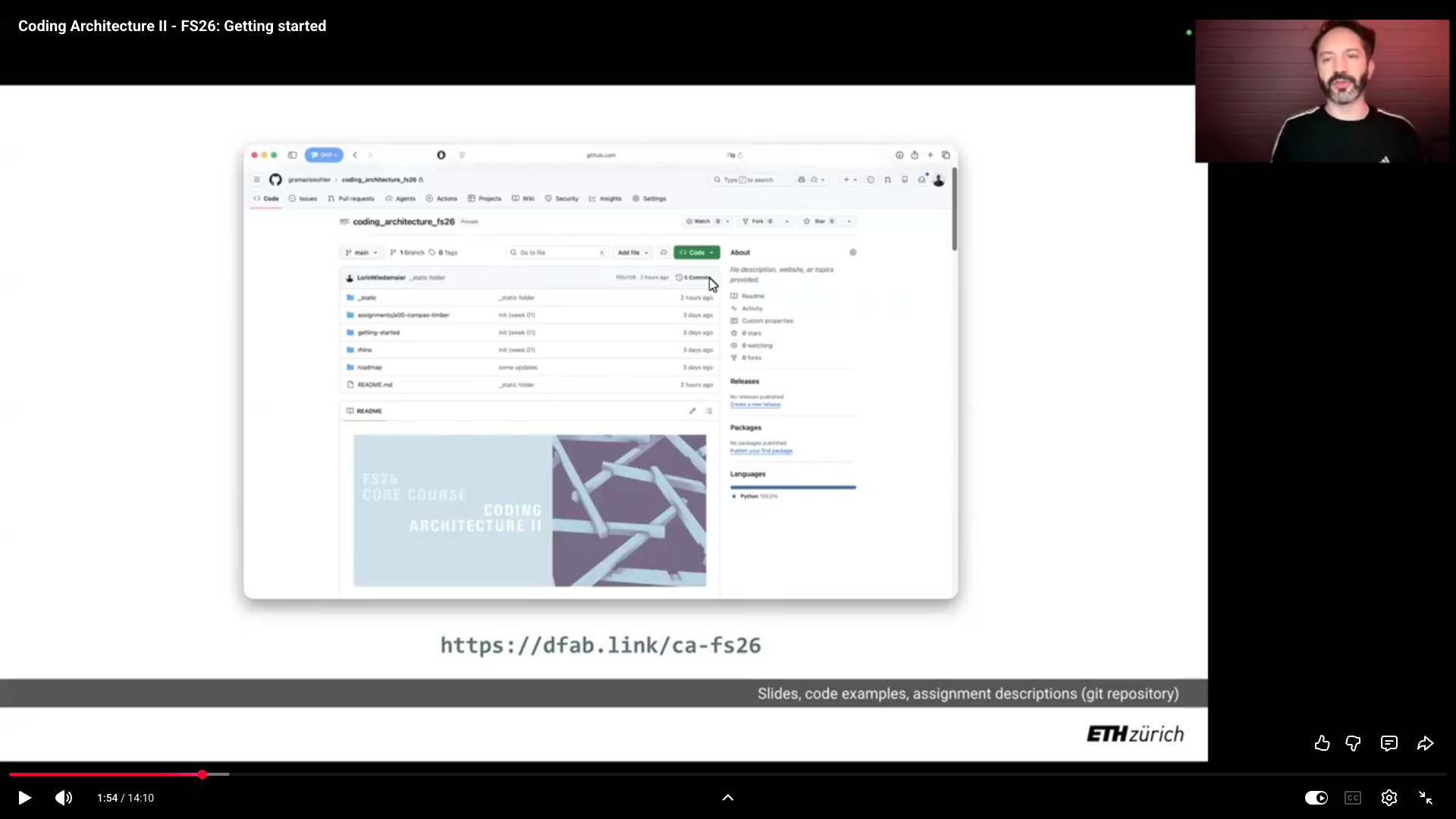
Once that is done, follow the installation instructions with this step-by-step video:
Troubleshooting
If you encounter issues during the installation, try to restart Rhino and retry. If the problem persists, contact your tutor.
Technical Setup for VS Code (Advanced)
While the main course content runs in Rhino/Grasshopper, we recommend setting up a proper Python environment for editing code in VS Code. This gives you autocompletion, error checking, and the ability to run scripts directly.
We use uv for this. It is a fast tool to manage Python installations.
1. Install uv
Follow the official install guide to install uv on your machine.
2. Open Project in VS Code
Open the folder where you cloned the repository in VS Code.
3. Setup Environment
- Open a new terminal inside VS Code (
Terminal > New Terminal). -
Run the following command to download and install all necessary tools and libraries:
uv syncThis creates a hidden
.venvfolder in your project with everything ready.
4. Configure VS Code
To make VS Code understand your code (fix missing imports, enable autocomplete):
- Open the Command Palette (
Cmd+Shift+Pon Mac,Ctrl+Shift+Pon Windows). - Type and select:
Python: Select Interpreter. -
Select the recommended environment (it should point to
./.venv/bin/pythonor similar).If you don’t see it, choose “Enter interpreter path…”, navigate to the project folder, and select
.venv.